Clock In/Out for Visits
A guide to using the Clock In/Out feature for Electronic Visit Verification (EVV) when visiting patients.
Clock In/Out for Visits
The Clock In/Out feature allows clinicians to track their time and verify visits using Electronic Visit Verification (EVV). This ensures accurate time tracking, location verification, and compliance with healthcare regulations.
Overview
The Clock In/Out system provides:
- Visit-Specific Clock In/Out: Clock in directly to scheduled patient visits
- Location Tracking: Automatic GPS location capture for visit verification
- Time Tracking: Accurate recording of visit start and end times
- Real-Time Status: See your current shift status and active visits
- Visit Management: View upcoming visits and clock in when you arrive
Accessing Clock In/Out
- From the Sidebar: Click on "Clock In/Out" in the Clinical section of the main navigation sidebar.
- From the Bottom Navigation: On mobile devices, tap the "Clock" button in the bottom navigation bar.
This will open the Time Tracker modal dialog.
Time Tracker Modal
The Time Tracker modal provides a comprehensive interface for managing your visits and time tracking.
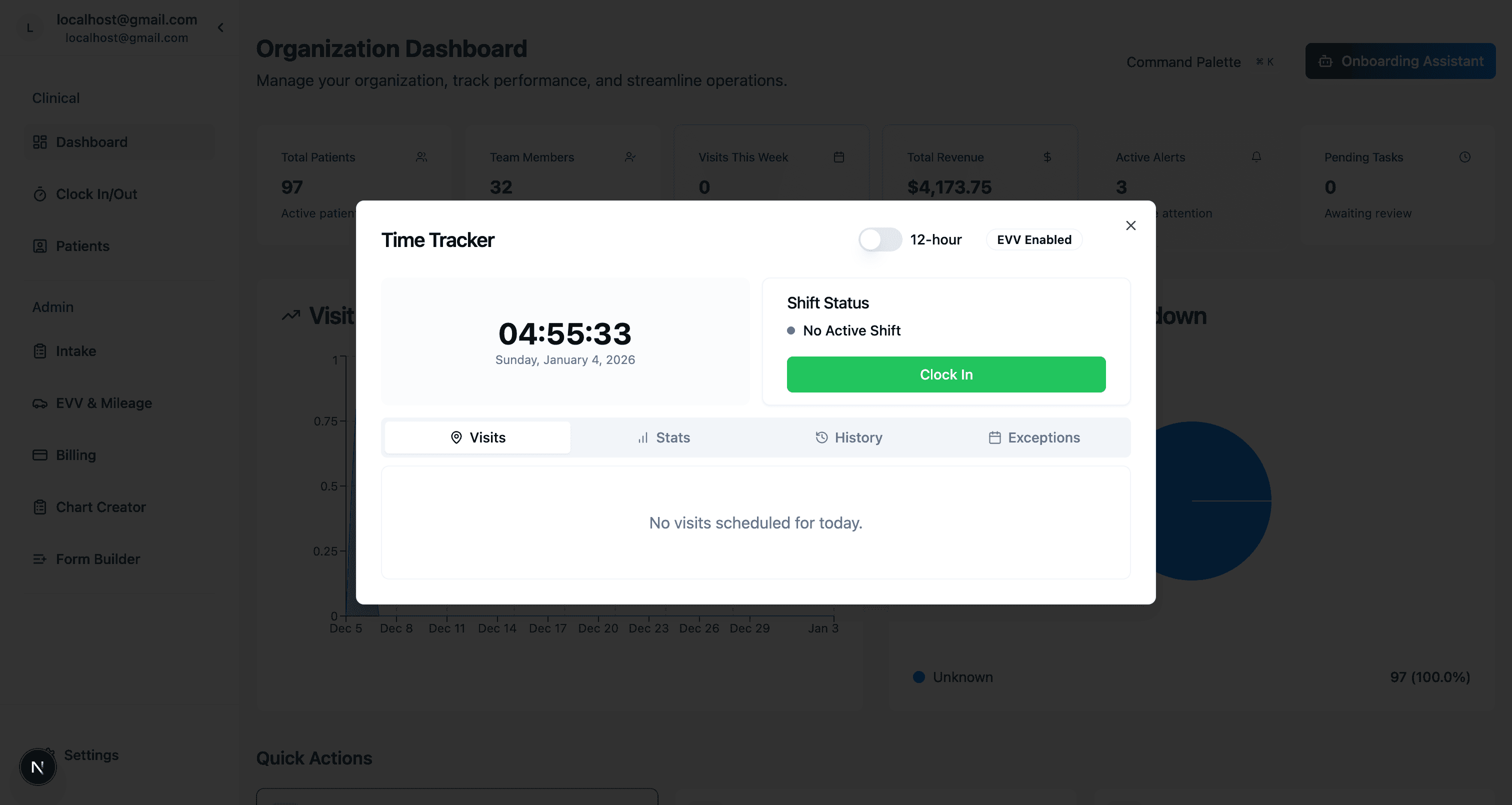
Header Section
- Title: "Time Tracker"
- Time Format Toggle: Switch between 12-hour and 24-hour time format
- EVV Status Badge: Shows "EVV Enabled" or "EVV Active" depending on your current status
Current Time Display
The left side of the modal displays:
- Current Time: Large digital clock showing the current time
- Current Date: Full date display (e.g., "Sunday, January 4, 2026")
Shift Status
The right side shows your shift status:
- Status Indicator: "No Active Shift" or "Active Shift"
- Clock In/Out Button:
- When not clocked in: Green "Clock In" button
- When clocked in: Red "Clock Out" button
Clocking In to a Visit
From the Visits Tab
- Open Time Tracker: Click "Clock In/Out" from the sidebar or bottom navigation.
- Navigate to Visits Tab: The "Visits" tab is selected by default.
- View Scheduled Visits: You'll see a list of your scheduled visits for today, including:
- Patient name
- Visit address
- Scheduled time range
- Visit status (Current, Upcoming, or Past)
- Clock In: For visits marked as "Current" (within 15 minutes of the scheduled time), you'll see a "Clock In" button on the visit card.
- Click Clock In: Click the "Clock In" button for the specific visit you're starting.
- Location Capture: The system will automatically capture your GPS location for verification.
- Confirmation: You'll receive a confirmation that you've successfully clocked in to the visit.
Visit Status Indicators
- Current: Visit is happening now (within 15 minutes of scheduled time) - Clock In button is available
- Upcoming: Visit is scheduled for later today
- Past: Visit time has passed
Clocking Out from a Visit
- Open Time Tracker: Click "Clock In/Out" from the sidebar or bottom navigation.
- View Active Visit: If you're clocked in, you'll see your active visit status.
- Click Clock Out: Click the "Clock Out" button (red button) when you've completed the visit.
- Location Capture: The system will capture your final location.
- Confirmation: You'll receive a confirmation that you've successfully clocked out.
Time Tracker Tabs
The Time Tracker modal includes several tabs for different views:
Visits Tab
- Purpose: View and manage your scheduled visits for today
- Features:
- List of all scheduled visits
- Patient information and addresses
- Visit time ranges
- Clock In buttons for current visits
- Visit status indicators
Stats Tab
- Purpose: View statistics about your work time
- Features:
- Today's total hours
- This week's total hours
- Current session duration (if clocked in)
- Shift summaries
History Tab
- Purpose: Review your past clock in/out sessions
- Features:
- List of previous shifts
- Clock in and clock out times
- Session durations
- Date and time stamps
Exceptions Tab
- Purpose: View any visit exceptions or issues
- Features:
- Late clock-ins
- Missing clock-outs
- Location discrepancies
- Other compliance issues
General Clock In/Out (Shift-Based)
You can also clock in for a general shift without a specific visit:
- Open Time Tracker: Click "Clock In/Out" from the sidebar.
- Click Clock In: Use the main "Clock In" button in the Shift Status section.
- Start Tracking: Your shift time will begin tracking.
- Clock Out: When your shift ends, click "Clock Out" to stop tracking.
Best Practices
- Clock In Promptly: Clock in when you arrive at the patient's location
- Clock Out Accurately: Clock out immediately after completing the visit
- Check Location: Ensure GPS location is being captured (the system handles this automatically)
- Review Exceptions: Regularly check the Exceptions tab to address any issues
- Use Visit-Specific Clock In: When possible, use the visit-specific clock in from the Visits tab for better tracking
Troubleshooting
Clock In Button Not Appearing
- Check Visit Time: The Clock In button only appears for visits marked as "Current" (within 15 minutes of scheduled time)
- Refresh the Modal: Close and reopen the Time Tracker modal
- Check Schedule: Ensure the visit is scheduled for today
Location Not Capturing
- Browser Permissions: Ensure your browser has permission to access your location
- GPS Enabled: Make sure location services are enabled on your device
- Internet Connection: A stable internet connection is required for location tracking
Cannot Clock Out
- Check Status: Ensure you're actually clocked in (check the Shift Status section)
- Refresh: Try refreshing the page or reopening the modal
- Contact Support: If issues persist, contact your administrator
Related Documentation
- Scheduling - Learn about scheduling visits
- Dashboard Overview - Understand your dashboard
- EVV (Admin) - Administrative EVV management